 tidy
Tidy your computer from your phone.
Tidyflick turns your Desktop, Downloads and Documents into a deck of cards. Swipe right to keep, left to bin, up to file it away. After the big clean-up, 30 seconds an evening keeps it that way.
Free during launch · macOS 12+ · Windows 10/11
Set up once, in about two minutes
-
Install the desktop app
On your Mac or Windows PC. It scans Desktop, Downloads, Documents, Pictures, Movies or Videos, and your code project folders, then sorts what it finds into decks.
-
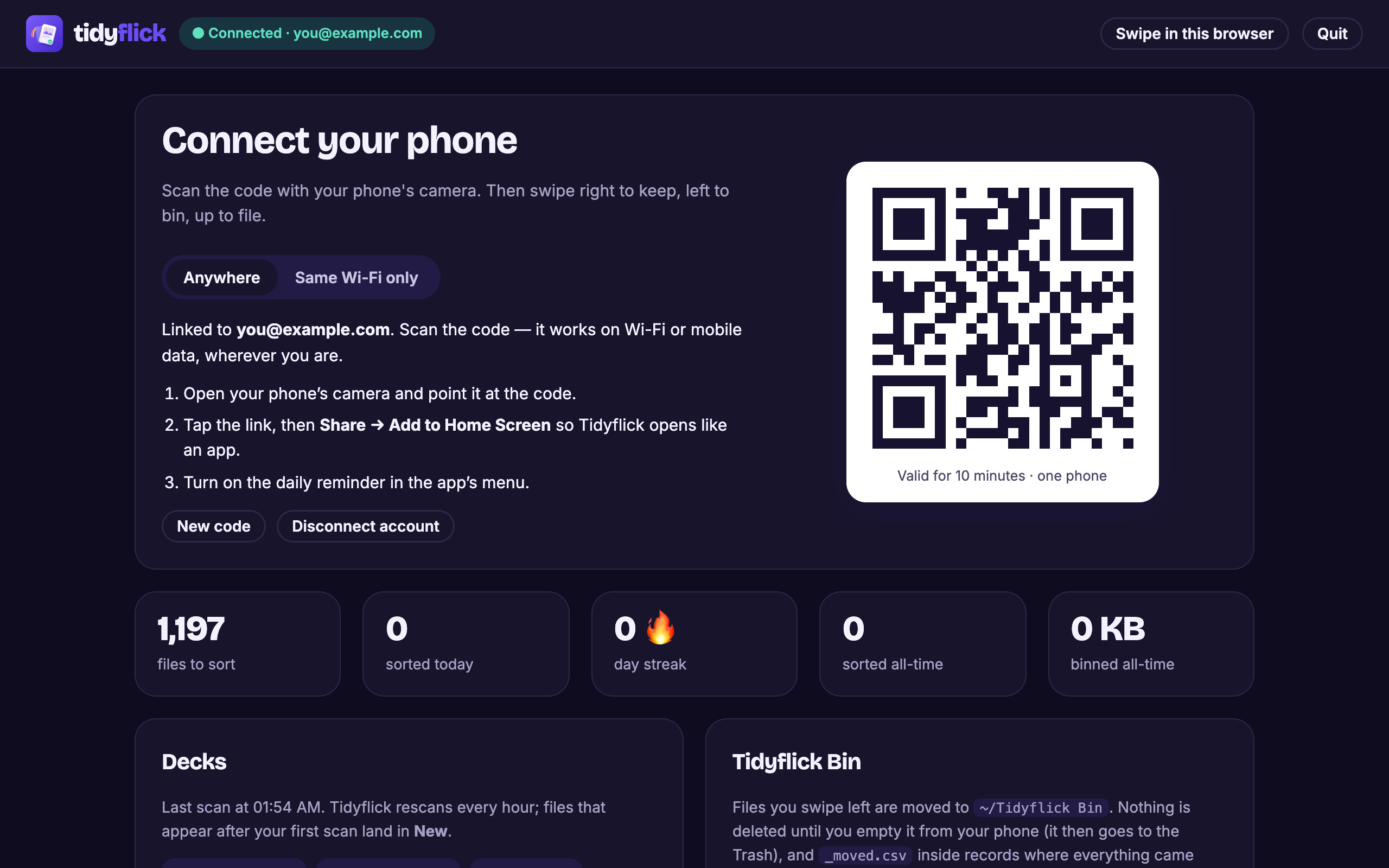
Scan the QR code
Point your phone camera at the code the app shows. Tidyflick opens in your phone’s browser. Add it to your Home Screen and it behaves like an app, with nothing to install from a store.
-
Swipe through the mess
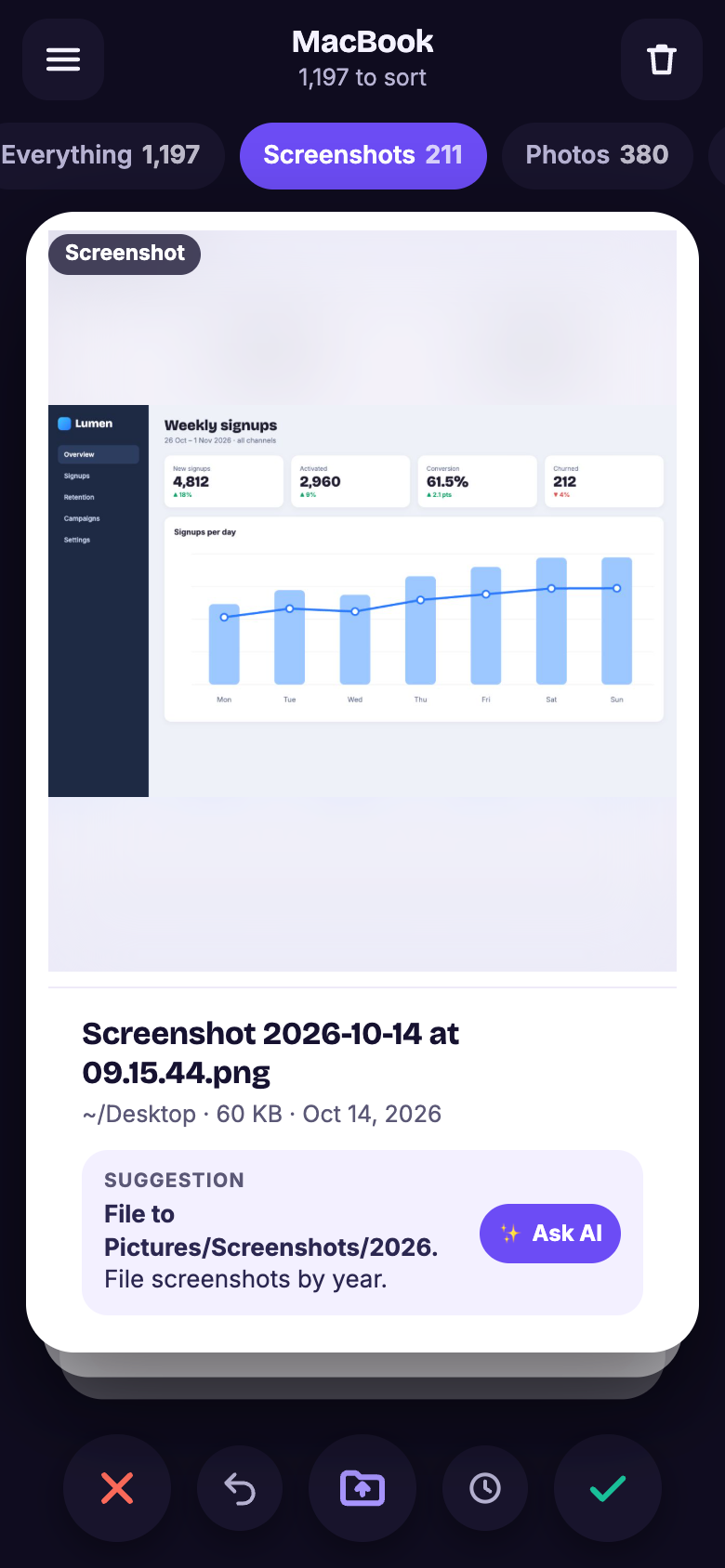
Each file becomes a card with a preview, its size and age. Keep it, bin it or file it. Do the big clean-up from the sofa, a few hundred cards at a time.
Then, every evening: one notification with the day’s new files. About 30 seconds to sort them. How the daily habit works
Three moves. That’s the whole app.
Swipe up to file it
Tidyflick suggests a folder, like Pictures/Screenshots/2026 or Documents/Receipts, and moves the file there.
Swipe left to bin it
The file moves to a folder called Tidyflick Bin. Nothing is deleted until you empty it, and anything in it can be restored.
Swipe right to keep it
It stays exactly where it is. The next card slides in.
Tap a card to see the file full size. Undo takes back the last swipe.
The mess, already sorted into decks
Start wherever it hurts most. Every deck is a pile of cards you can work through in any order.
- Since yesterday
New today
Everything that turned up today. This is your evening deck.
- PNG
Screenshots
The screen grabs piling up on your Desktop.
- JPG HEIC
Photos
Pictures, phone exports and saved images.
- PDF DOCX
Documents
PDFs, letters, spreadsheets and scans.
- Anything
Downloads
Whatever your browser has dropped in there over the years.
- DMG EXE ZIP
Installers & archives
Setup files and zips you already used. Usually the easiest space to win back.
- One card per project
Code projects
Each project folder shows up once, with its size and when you last changed it.
KeepArchiveBin
- Biggest first
Large files
The files taking up the most space.
- Copies
Duplicates
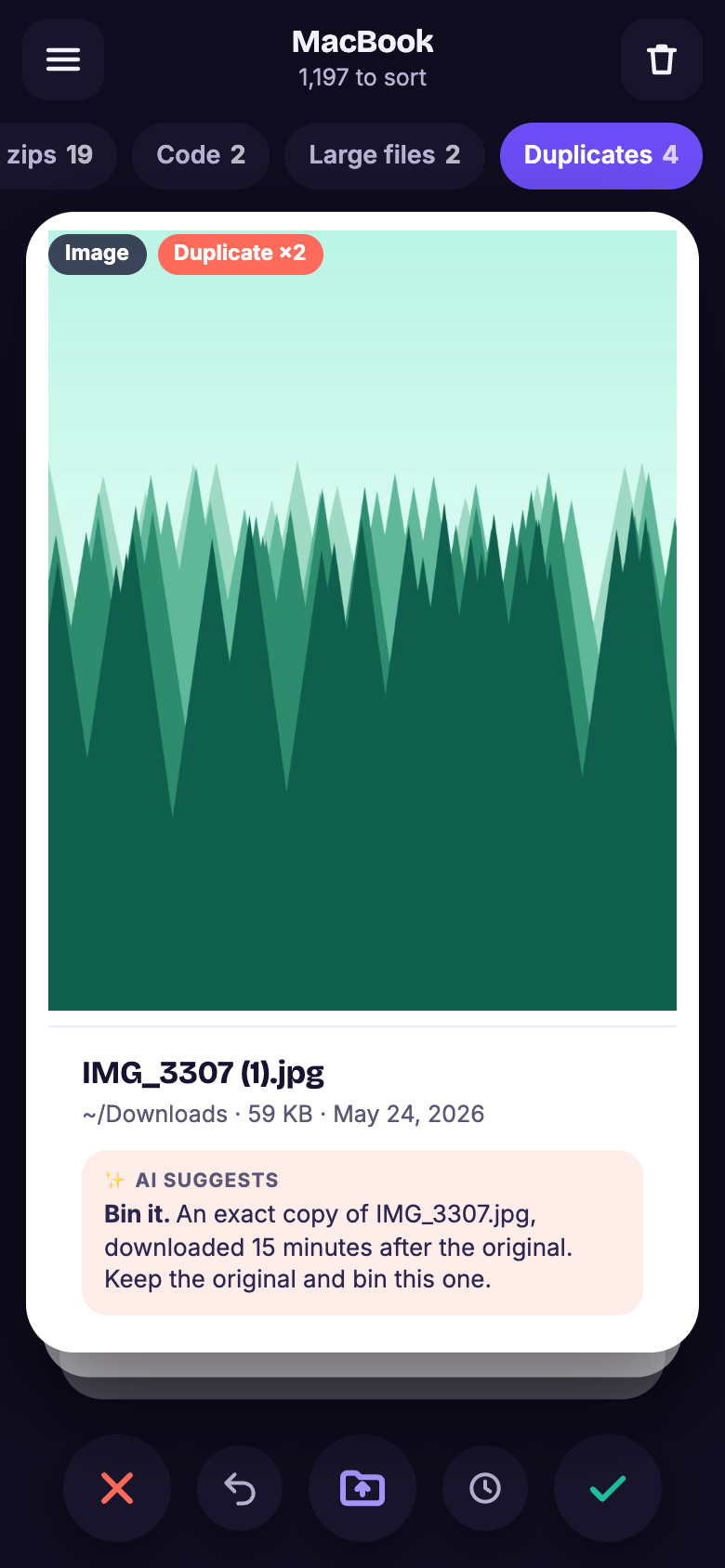
The same file saved twice, or five times.
Not sure? Ask AI.
Every card has an Ask AI button. It suggests whether to keep, bin or file the file, where it should go, and why, in a sentence you can read in two seconds.
What it sees
Only the file’s details: name, type, size, dates, the folder it’s in and how many duplicates it has.
What it doesn’t
What’s inside the file. If you want sharper advice on documents, you can turn on Share text snippets in settings. It’s off unless you switch it on.

Then it’s 30 seconds a day
After the first clean-up, Tidyflick keeps an eye on your folders. Every evening your phone gets one notification with the day’s new files. You pick the time.
Sort them while the kettle boils, and your Desktop never fills up again. Your account page keeps a streak and a running total of files sorted and space freed.
Your files never leave your computer
Tidyflick moves files around on your own disk. Here is exactly what goes where.
Stays on your computer
- The files themselves. Binning moves a file into the Tidyflick Bin folder on your disk.
- Emptying the Bin sends files to your computer’s own Trash or Recycle Bin.
Passes through, never stored
- Card previews and file names travel to your phone. Away from home they go through our relay, encrypted, and are never saved.
- On the same Wi-Fi, the phone talks to your computer directly. No account, no relay.
- When you tap Ask AI, that file’s details go to an AI model provider to get the answer.
What we keep
- Your account email and device names.
- Daily counts: how many files you sorted of each type and how many bytes you freed.
- Never file names, contents or previews.
See it working
Questions
Is it safe?
Tidyflick never deletes anything by itself. A left swipe moves the file into a folder called Tidyflick Bin, on your own disk. Filing moves it into a folder you can see. You can undo the last swipe straight away, and restore anything from the Bin later.
As with any tool that moves files, keep a backup of anything you can’t afford to lose.
What actually gets deleted?
Nothing, until you empty the Tidyflick Bin. Even then, the files go to your computer’s own Trash (Mac) or Recycle Bin (Windows), so you get the usual last chance to change your mind.
Does it work on Windows?
Yes, on Windows 10 and 11. It scans Desktop, Downloads, Documents, Pictures, Videos and your code project folders. The app installs itself in your user folder and starts when you log in, so it can prepare the evening deck. You can turn that off in its settings.
Do I need an account?
Not if your phone and computer are on the same Wi-Fi: Tidyflick then works fully locally, with no account. To sort from anywhere else, create a free account so your phone can reach your computer through our secure relay.
What does the AI see?
Only when you tap Ask AI, and only that file’s details: name, type, size, dates, folder and duplicate count. Never its contents, unless you turn on Share text snippets in settings. Requests go to a third-party AI model provider, which may process them outside your country. The privacy policy has the details.
Why does my computer warn me when I install it?
The apps aren’t code-signed yet, so macOS and Windows show a warning for any app from a developer they don’t recognise. On a Mac, right-click (or Control-click) Tidyflick in Applications and choose Open. On Windows, click More info and then Run anyway. The download page walks you through it.
How do I get a file back?
Tap Undo right after a swipe. Later on, open the Tidyflick Bin and restore the file to where it came from. The Bin is an ordinary folder, so you can also drag a file out of it yourself.
How much does it cost?
Nothing. Tidyflick is free during launch, with no card to enter.
Your Desktop has waited long enough.
Install it tonight. Sort the first deck before bed.